

Inbound Routing Overview
Maileroo Inbound Routing service for receiving, forwarding, and processing emails sent to your domain.
Inbound Routing is now available on Maileroo. With our Maileroo Inbound Routing service, you can seamlessly receive emails sent to your domain, forward them to other email addresses, or process them as webhooks for automation and integration with your application.
Your First Route
To access Inbound Routing, go to your dashboard. Select your domain, click on Sending → Inbound Routing.
You should be welcomed by a view such as this:
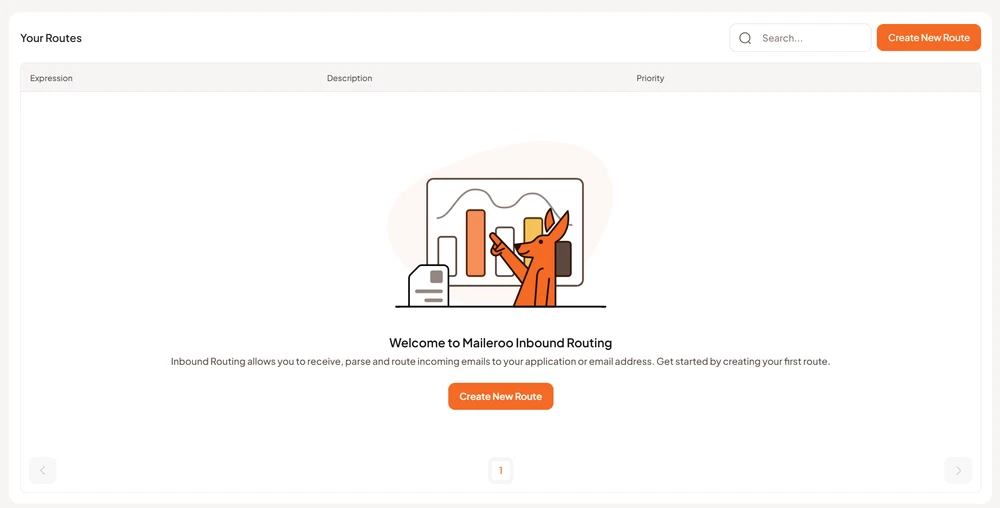
Click on Create New Route.
Once you click on it, a small modal will appear, prompting you to enter various details. Most of these are straightforward, so we'll focus on explaining the less obvious and more intricate aspects here.
Expression Type
This determines how incoming emails are filtered or matched based on criteria like all emails ("Catch All"), specific headers ("Match Header"), recipient addresses ("Match Recipient"), or advanced custom expressions for precise control.
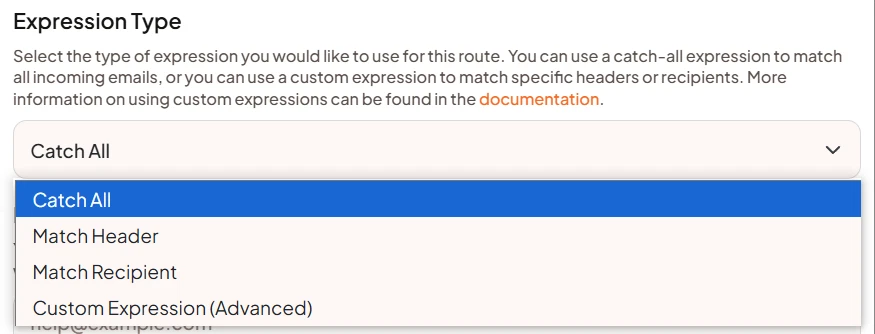
For both "Match Header" and "Match Recipient," you can provide a literal value, wildcard string or a regex. Literal values are compared case-insensitively, while regex offers complete flexibility. When using a wildcard string, you can specify values such as *@gmail.com or maileroo@* to match values. You may even use a pattern such as *@maileroo.com to match any address ending with @maileroo.com, or admin@* to match any address starting with admin@.
For more details on expressions and custom matching, see the Route Matching & Expressions guide.
You can choose to enforce DKIM and SPF on your route based on your preferences. At a minimum, we recommend ensuring that the email is DMARC-aligned.
1:1 Local Part Mapping: Local Part Preservation
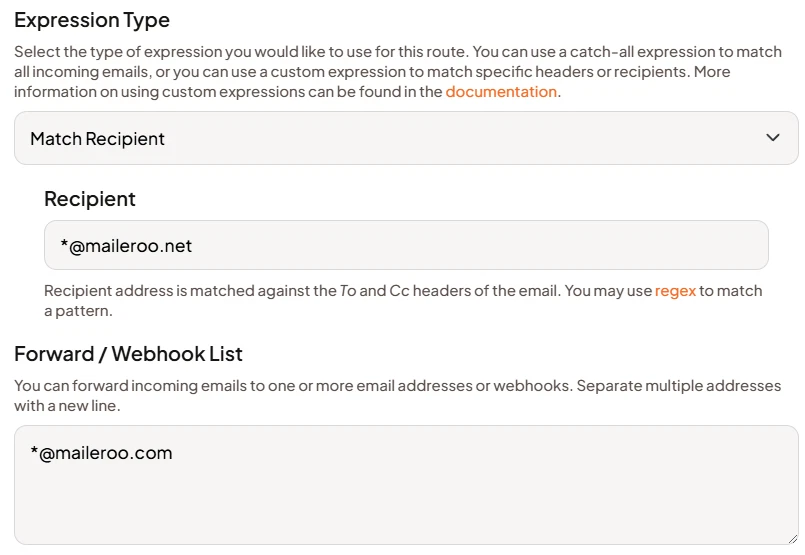
If you want to map one domain directly to another, forwarding emails from [*]@example1.com to [*]@example2.com, you can use a feature known as 1:1 Local Part Mapping. This approach utilizes wildcards to easily preserve the local part of the email address during forwarding.
Wildcards make it simple to preserve the local part of email addresses during forwarding. As illustrated in the image below, you can configure a wildcard for matching the recipient's local part and another wildcard for the forwarding list.
Spam Status Header
We always conduct a spam check on any incoming emails. If you choose to forward spammy messages, we will always assign the following header on it.
X-Spam-Status: YesWith this header, you can decide how to process an email based on your specific needs. For instance, some customers choose to receive emails flagged as spam but route them directly to their spam folder by inspecting the header. This approach ensures no message is lost, even in the case of a false positive.
Use Webhook Tester
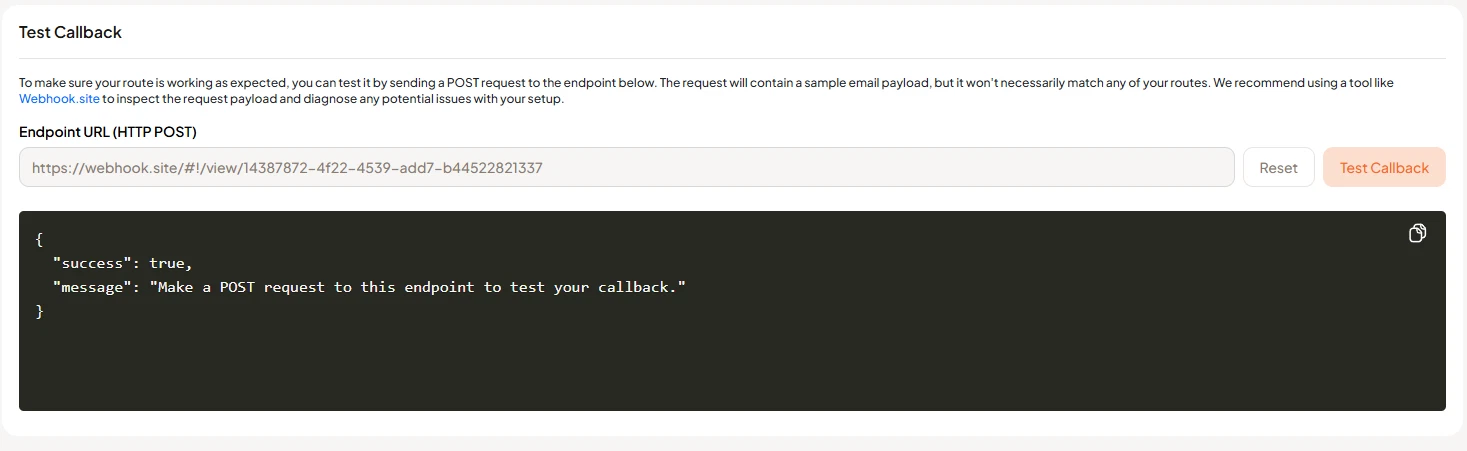
We provide a webhook testing tool to simplify debugging. It allows you to easily trigger sample webhooks to any URL of your choice.
Best Practices for Handling Webhooks
- Secure Your Endpoint: Ensure that the endpoint you expose for receiving webhooks is secure and can handle the anticipated volume of webhook calls.
- Validate the Webhook: Trigger the
validation_urlto verify the authenticity of the webhook request. Only allow the webhook to be processed further if the validation is successful. - Log and Monitor: Keep logs of the webhook events received for troubleshooting and analysis.
- Use Webhook.site: Utilize tools like Webhook.site to test and debug your webhook integrations. It allows you to inspect incoming webhook requests, including headers and payloads.
Frequently Asked Questions
Here are some common questions you may have about Maileroo Inbound Routing and how it works.
Do I need to add Maileroo's MX records to my domain?
Yes, for us to handle emails on your behalf, you must add the MX records shown on the DNS records page.
What if I already have MX records?
Well, well.. in that case, you can't really use Maileroo Inbound Routing. This is because you can only use one email provider (with multiple, fallback MX records). However, there's a quick workaround. You can always use a sub-domain such as mail.example.com if your primary domain already has an email service provider.
How long are emails and attachments stored in your servers?
Emails received will be stored in our database for up to three days unless manually deleted.
How do I know if I am receiving any webhooks from Maileroo?
This is easy to debug with services such as Webhook.site, Webhook Tester, Webhook.Cool which allow you to receive and inspect any HTTP payloads sent to their webhook URLs.
Am I charged for multiple routes?
You are only charged once per email irrespective of the number of routes that may handle or process it.
Am I charged for any forwarded emails?
Yes, forwarded emails count towards your plan's outbound email credits. For example, if you forward an email to 15 different recipients, it will use 1 inbound credit and 15 outbound credits.
But why am I being charged for forwarded emails?
Forwarded emails are processed and sent through our email infrastructure just like any other email. Each forwarded email requires resources such as bandwidth, server processing, and outbound delivery, which incur costs.
Do you provide IMAP access?
No, we do not provide IMAP access. Our Inbound Routing system is designed for accepting, parsing and handling or forwarding emails programmatically and it is not a mailbox system.
For full mailbox functionality, including IMAP, we recommend using dedicated email providers such as Google Workspace, Microsoft 365, Proton Mail, Mango Mail and MXroute.
How many routes can I create per account and domain?
We allow 1024 routes per account and 128 routes per domain. However, this can be adjust for each account. Please feel free to reach out.
How email forwarders and webhooks can I have?
By default, we allow up to 4 email forwarders and 100 webhook handlers per account to prevent misuse and spam forwarding. If you need higher limits, you can easily request an adjustment by opening a support ticket. According to our Zendesk statistics, the median first reply time is 55 minutes, so you wouldn't have to wait too long.
What is the maximum email size you can handle?
We can handle emails up to 50 MB, including attachments.